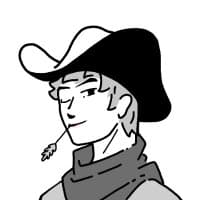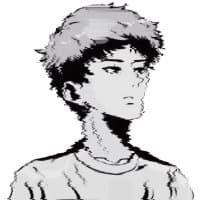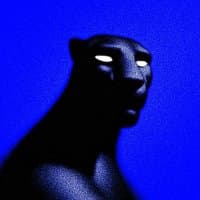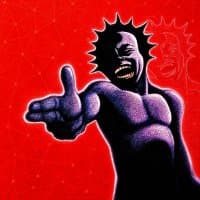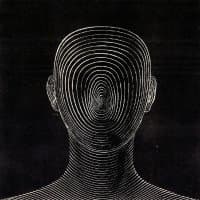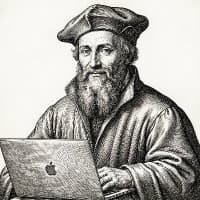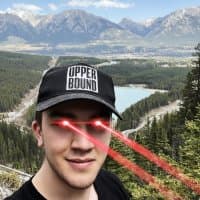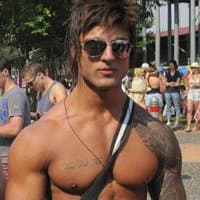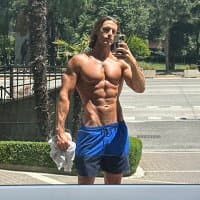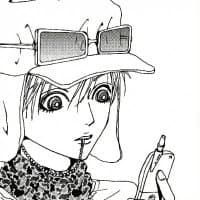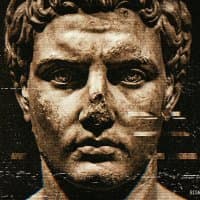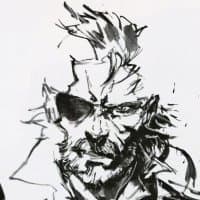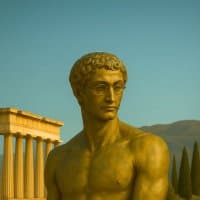

Currently, TikTok is heavily boosting views and engagement for slideshows, you can check out these channels.
And actually, all these images are taken from Pinterest (an endless source of images, no need to use AI generation at all Cost = $0 and easy viral than AI generate).
Stack: TikTok · SnapTik · Claude Opus 4.7 · Pinterest · Node.js Canvas · Postiz Agent CLI, Cost: ~$0. (Almost Open Source option)
Why This Workflow?
Most creators are still doing content manually: come up with an idea → design → post one by one. It's time-consuming and inconsistent. Here's why this workflow works:
- No expensive tools. Buffer, Later, and Hootsuite all have limited free tiers. Self-hosted Postiz is unlimited.
- Scalable. Once set up, you can batch 30 posts/week in 2 hours.
- Data-driven. Hooks come from actually viral videos, not guesswork.
Overview: The 5-Step Workflow
Step 1: Find Hooks From TikTok
The hook is the first 3 seconds that determine whether someone stops scrolling or not. This is your best data source, pulled directly from videos that are already going viral in your niche.
How to scroll with purpose
Open TikTok and search keywords in your niche (e.g. "StudyTok", "GymTok", "BookTok"...). Filter by Most Liked or Most Recent to see what's currently trending.
While watching, pay attention to:
- The first text overlay, appearing within the first 2 seconds
- The opening line, usually a question or a shocking statement
- Recurring formats: "You're doing X wrong", "X things Y never tells you", "I did X and here's what happened"
Download videos to analyze
Use SnapTik or SSSTik to download videos without a watermark:
1. Copy the TikTok video link
1. Go to snaptik.app or ssstik.io
1. Paste the link → Download (select "Without Watermark")
Save locally, then upload to Claude in the next step.
Step 2: Extract Hooks with Claude Opus 4.7 (From Slideshows)
This is the step most people skip.
Instead of guessing hooks, let Claude Opus 4.7 analyze viral slideshow patterns that are already working.
Prompt to Extract Hooks from a Slideshow
Upload the slideshow images (or PDF/carousel) to Claude Opus 4.7, then use this prompt:
Analyze this TikTok slideshow and:
1. Identify the main hook used in the first slide
(focus on text overlay, headline, and visual framing)
2. Explain why this hook works
(curiosity / pain point / surprise / relatability)
3. Break down the hook structure
(e.g., number + outcome, negative framing, identity targeting)
4. Write 5 similar hook variations for the niche [YOUR NICHE HERE]
- Each hook under 10 words
- Format: a question OR a strong statement
- Avoid generic openers like "Did you know"
Output as a numbered list, one hook per line.
Prompt if You Only Have the Slideshow Content (No Images)
If you extracted text manually from slides:
Here is the content of a viral TikTok slideshow in the niche [NICHE]: [PASTE CONTENT HERE]
Task:
- Identify the core hook from the first slide
- Write 7 hook variations for a similar slideshow
- Each hook must trigger one of 3 emotions:
curiosity / FOMO / empathy
- Max 8 words per hook
- Include a short explanation of why each hook works
Real Output Example
For the personal finance niche, Claude might return:
Save & Build Your Hook Library
Save all hooks into:
- Obsidian (Super powerful)
- Notion
- Google Sheets
Over time, you’ll build a hook database → faster content creation → higher hit rate
Bonus: Generate Pinterest Search Terms (for Step 3)
While you still have the slideshow in Claude Opus 4.7, run this:
Based on this slideshow, suggest 10 Pinterest search queries that match the visual style and content theme.
Focus on:
- Aesthetic keywords
- Composition (minimal, bold text, dark mode, etc.)
- Niche-specific visuals
Output as a list of short search phrases.
This helps you go into Step 3 with precise visuals, instead of guessing.
Bonus: Extract Visual Style + Pinterest Queries (for Slideshows)
While you still have the slideshow in Claude Opus 4.7, run this:
Now look at the visual style of this slideshow:
1. Describe the color palette, lighting, and overall aesthetic
(dark/moody, bright/clean, luxury, minimal, etc.)
2. What kind of images would work as slideshow backgrounds
for the hooks you just wrote?
3. Give me 5 specific Pinterest search queries to find those images
- Format: short keyword phrases, 2–4 words each
- Optimized for Pinterest search, not Google
Example Output (Personal Finance Slideshow)
👉 Copy these directly into Pinterest search for Step 3.
Step 3: Pick Images From Pinterest
By now Claude has given you both the hooks and the Pinterest search terms. Go straight to searching, no need to figure out what to look for.
What makes a good TikTok image
- Ratio: Prioritize portrait / 9:16. Landscape works too; the script will crop it.
- Colors: Bold, high contrast. Avoid soft pastels since the TikTok feed is competitive.
- Content: Minimal text in the image (since you'll be overlaying your own text)
- Vibe: Should match the emotion of your hook. Money hook = lifestyle image, fitness hook = action shot
Use the search terms from Claude Opus 4.7
Paste the 5 queries Claude Opus 4.7 gave you directly into Pinterest search. Each query targets a specific visual vibe rather than a broad topic, so results are much more consistent and on-brand.
How to download Pinterest images
Option 1: PinDown Chrome Extension
1. Install PinDown on Chrome
1. Open a Pinterest image → Click the PinDown icon → Download full resolution
Option 2: Direct right-click
1. Click the image to open full size
1. Right-click → "Open image in new tab"
1. Right-click the image → Save image as
Option 3: Bulk download with Python (for full automation)
Organize by niche:
Step 4: Generate Slides with Node.js Canvas (No Canva Needed)
Instead of designing manually in Canva, use a script to programmatically overlay hook text onto your Pinterest images and export them as 1080×1920 PNGs, fully automated.
Install dependencies
@napi-rs/canvas is a fast, native Node.js canvas implementation. No browser required.
Slideshow structure
The script: generate-slides.js
Run it
Output:
Generating 6 slides...
Using a custom font
Download any TTF/OTF font (e.g. Inter Bold, Montserrat Black) and register it:
Now your content team can edit slides-config.json without touching code. Pair this with the hook list from your Claude Opus 4.7 output and you have a fully automated content pipeline.
Step 5: Install Postiz Agent CLI
With your videos produced and any post-production complete, it is time to schedule them for publication. Postiz serves as your distribution command center, handling the timing, cross-posting, and engagement automation.
Repo / docs: postiz.com/agent
Verify it's working:
This returns all your connected social accounts as JSON. If you see an empty array [], you need to connect TikTok first.
Connect TikTok to Postiz
1. Go to app.postiz.com → Integrations → Add Channel → TikTok
1. Authorize with your TikTok account
1. Run postiz integrations:list again and you'll see your TikTok integration ID:
Copy the id. You'll need it in every posts:create command.
Core CLI commands for TikTok
Run it:
One command, entire week scheduled.
Step 6: Post as TikTok Draft to Avoid Spam Detection
This is the most overlooked part of any TikTok automation setup. If you push posts directly via the API at scheduled times from a server IP, TikTok's system will eventually flag the pattern as bot behavior: reduced reach, shadow restrictions, or full account flags.
The safe approach: upload to Drafts, publish manually from the app.
Why Draft mode matters
When you auto-publish via API, TikTok sees:
- A server IP initiating the post
- Consistent robotic posting intervals
- No human interaction before the post goes live
When you post from Drafts:
- The slides land in your TikTok Drafts silently
- You open the app at peak time, review the draft, and hit Post
- From TikTok's perspective: a human published from a real device on a real network
- No server fingerprint on the actual publish action
This one change makes a significant difference for account health, especially on new accounts or when posting at high frequency.
The hybrid workflow
Postiz handles the scheduling calendar and reminder. The actual publish comes from your device, which reads as a clean signal to the algorithm.
Upload PNG slides to TikTok Drafts
Option 1: Draft inside Postiz (kept in Postiz, not published)
Use the -t draft flag:
Post will sit in Postiz as draft and won't publish until you change status. Use postiz posts:status <id> --status schedule to queue it for publishing, or posts:delete to discard.
Option 2: Push to TikTok Inbox (draft inside TikTok app)
If you want the post to appear in the TikTok app as a pending draft you finalize on your phone, set content_posting_method to "UPLOAD":
When Postiz "publishes" this, TikTok delivers the video to the Inbox in the app. You open the app → tap the notification → finalize and post manually.
Configure Postiz in Notify mode
Set Postiz to Notify instead of Auto Publish. Postiz manages your editorial calendar and sends a push notification at the scheduled time reminding you to publish the draft from the app:
1. Postiz Dashboard → New Post
1. Select TikTok → add your caption and schedule the time
1. Under Publish mode, select Notify (not Direct Post)
1. Save
At the scheduled time, Postiz sends a mobile push notification: *"Time to post your TikTok!"* Open the app, find the draft waiting, and tap Post.
Troubleshooting Common Issues
POSTIZ_API_KEY environment variable is required
You haven't exported the key in the current shell session. Add it permanently:
postiz integrations:list returns empty array []
Your TikTok account isn't connected to Postiz yet. Go to app.postiz.com → Integrations → Add Channel → TikTok and authorize.
postiz upload fails
Check your POSTIZ_API_KEY is still valid. For large PNG files (unlikely with typical slides), try compressing first with pngquant:
Scheduled post didn't go out
Check postiz posts:list and look at the status field. If it's failed, Postiz will show an error reason (usually expired TikTok OAuth token or rate limit). Re-authenticate on app.postiz.com or local (if you self host) and reschedule.
Noted: Make sure your account has been posting for a while and is genuinely healthy.
Good luck guys 🫡